Blog
Ventoy: A Revolutionary Tool That Transforms USB Booting (Latest 2026 Version)
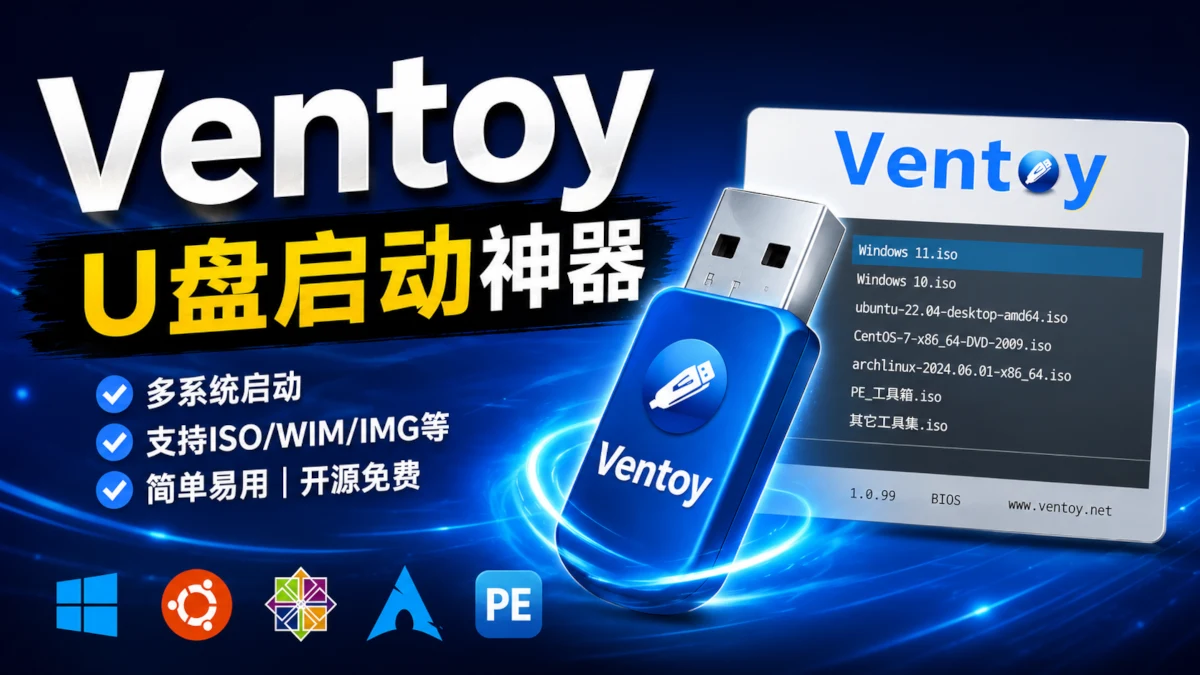
Do you find it incredibly tedious to repeatedly format your USB drive and write disk images every time you need to install an operating system? Today, I’d like to recommend a game-changing tool that will fundamentally transform the way you use USB drives—Ventoy.
I. What is Ventoy?
Ventoy is a free, open-source solution for creating multi-boot USB drives.
Its core feature is this: you only need to format the USB drive once. After that, you can simply copy disk image files—such as ISO, WIM, or IMG files—directly onto the drive. There is no need to reformat or use burning tools; you can boot directly from the drive immediately.
Simply put, Ventoy turns your USB drive into an "image repository."
II. Key Advantages of Ventoy
- Supports over 300 different operating system images (Windows, Linux, macOS, WinPE, etc.)
- Supports storing hundreds of different system images simultaneously
- Supports both UEFI and Legacy BIOS modes
- Supports Chinese (and other languages) with a user-friendly interface
- Completely free and open-source (an active project on GitHub)
- Automatically detects and supports the latest Secure Boot standards
III. Practical Use Cases for Ventoy
- OS Installation and Testing (Most Common)
- Multi-System Maintenance Toolkit (Various PE Tools)
- Hackintosh / Windows To Go
- Batch Server Deployment
- Emergency Rescue/Recovery Drive
IV. Installation and Usage Guide
Step 1: Download Ventoy
Visit the Official Website: https://www.ventoy.net
Visit This Site: ventoy
Download the latest version corresponding to your operating system (we recommend downloading the "With Ventura" full version).
Step 2: Create the Ventoy USB Drive
- Insert your USB drive (a capacity of 32GB or larger is recommended).
- Run
Ventoy2Disk.exe(on Windows) or the corresponding Linux version. - Select your USB drive → Click Install.
- Confirm the formatting (Important! All data on the drive will be erased).
Step 3: Add System Images
Simply copy your downloaded .iso files directly into the Ventoy partition on your USB drive. #### V. Ventoy Usage Tips
- Supports categorized folder management (it is recommended to create folders such as Linux, Windows, PE, etc.).
- Supports Chinese filenames.
- Supports updating the core Ventoy program without affecting existing disk images.
- It is recommended to use Rufus to create the initial Ventoy USB drive.
VI. Ventoy's Limitations
- The initial installation requires formatting the USB drive.
- Compatibility may be poor on some extremely old machines.
- Some Windows ISOs require additional processing to boot correctly.
VII. Conclusion
Ventoy is one of the most essential USB drive tools for Linux and Windows users to emerge in recent years. Once you have used it, you will never want to go back to traditional burning methods.
We strongly recommend that anyone who frequently installs operating systems or experiments with multi-boot setups prepares a Ventoy USB drive.
- History of open source software development 40
- Play SuperTuxKart on Ubuntu: The Open-Source Mario Kart! 22
- 🚀 Ubuntu 26.04 LTS Officially Released! Is It Worth Upgrading from 24.04? 13
- Ventoy: A Revolutionary Tool That Transforms USB Booting (Latest 2026 Version) 11
- A Complete Guide to Installing Ubuntu 26.04 Server in VirtualBox 10